Quick start
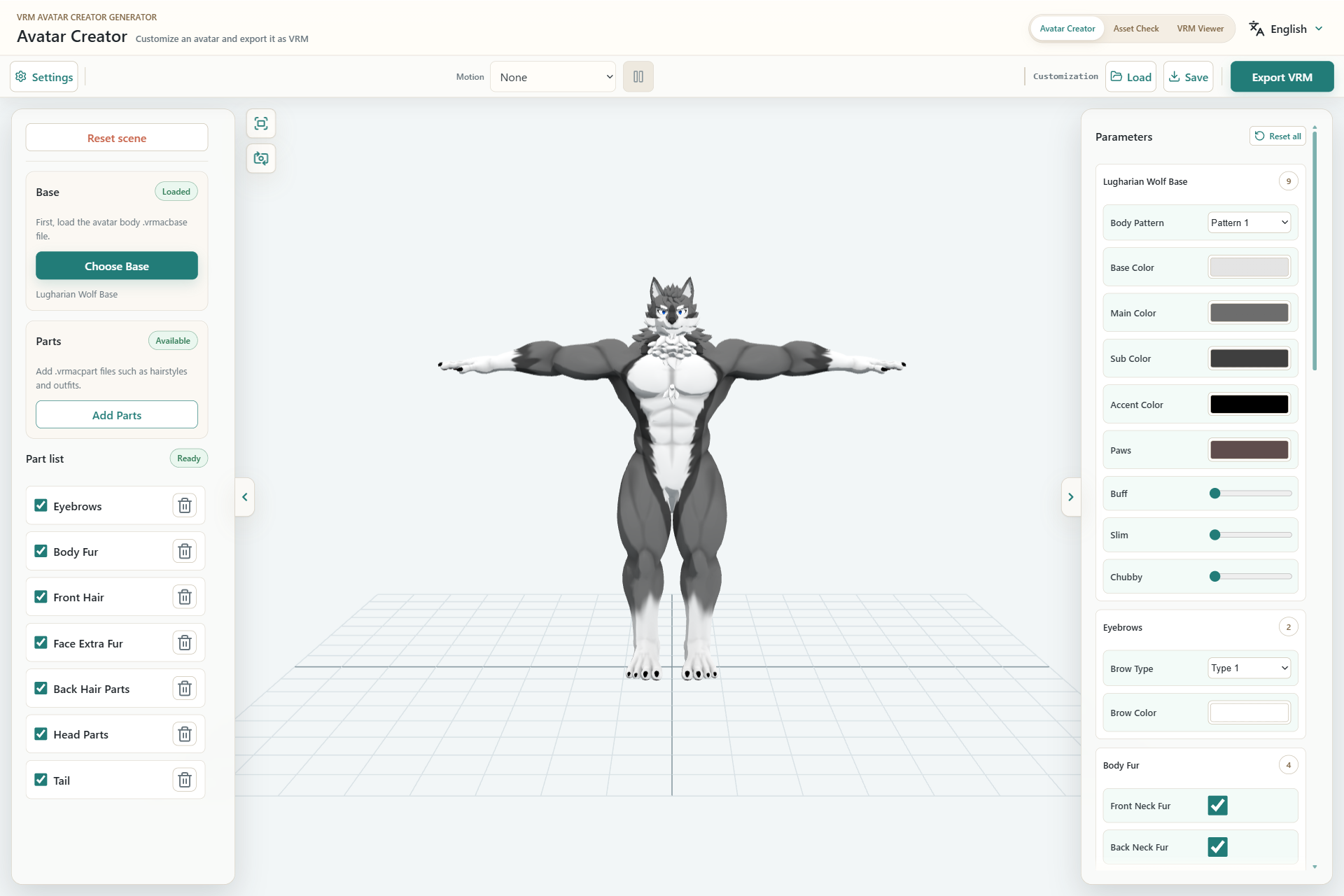
- The Assets pane for loading and enabling Base and Parts assets.
- The 3D preview of the current appearance.
- The Parameters pane for colors and shapes.
- Motion, save, load, and VRM export actions.
1. Load a Base
In the left pane, select Choose Base and open a .vrmacbase file. The Base provides the avatar body, available parameters, and export information.
2. Add Parts
Select Add Parts and choose one or more .vrmacpart files. Use the checkboxes in the Parts list to show or hide each loaded part.
3. Customize the appearance
Use the Parameters pane on the right.
- Dropdown: select a type or preset
- Color button: choose a color
- Slider: adjust shape or size
- Checkbox: show or hide an individual element
4. Save your work
To reuse the current setup, select Save and download the customization JSON. This JSON is not the VRM model itself.
5. Export the VRM
Open Export VRM and review the name and author. Set a thumbnail and optimization options if needed, then select Download VRM.
Verify the exported file
Open the result in VRM Viewer and inspect its appearance, bones, expressions, and animation.