Preview, motion, and saves
3D preview
- Left drag: orbit around the model
- Mouse wheel: zoom in and out
- Right drag: move the focus point
- Reset camera: restore the initial framing
- Fullscreen: inspect the preview across the window
Render settings
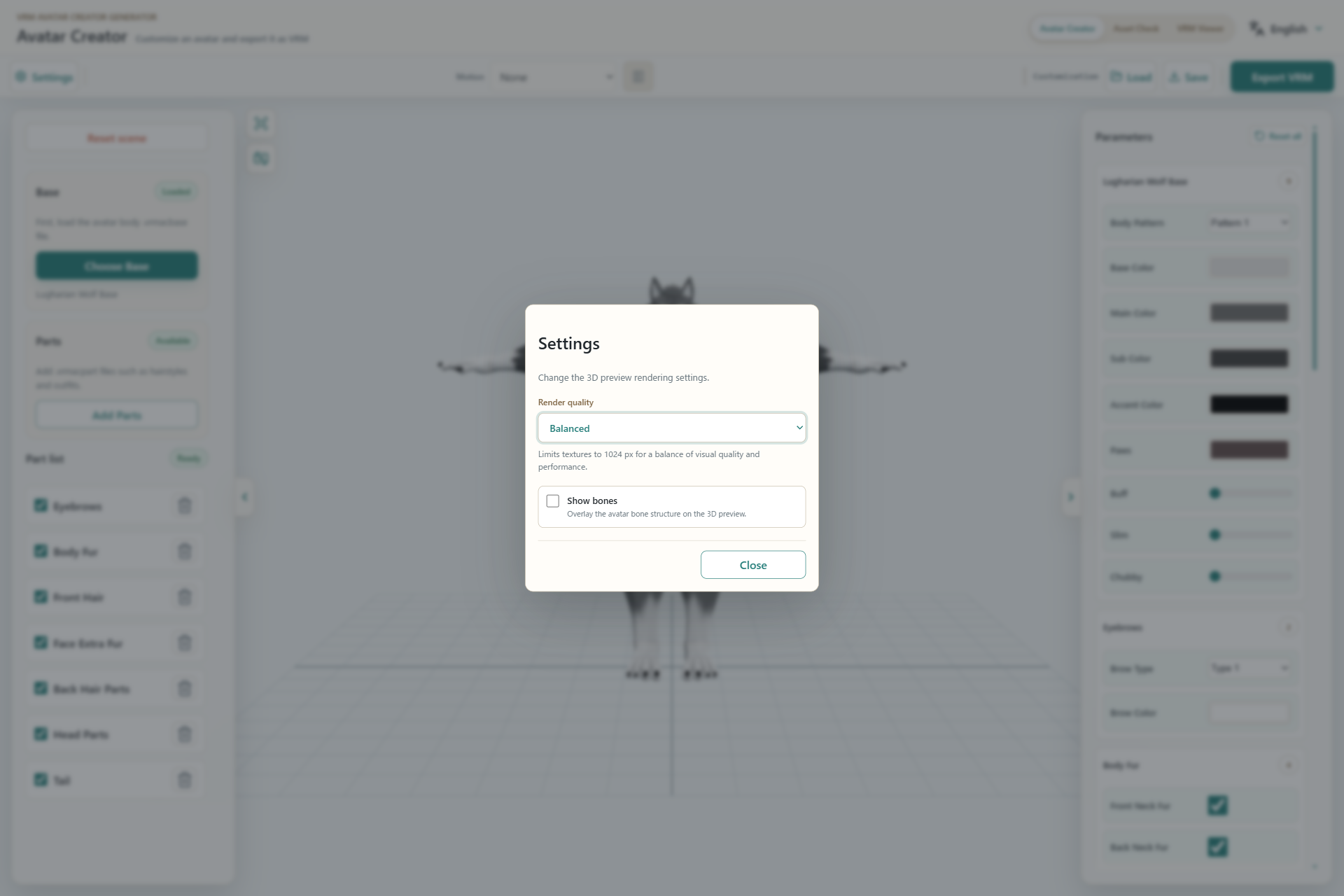
- Choose Power saver, Balanced, or High quality.
- Overlay the bone structure on the model.
- Close the dialog after changing the options.
Motion and saves
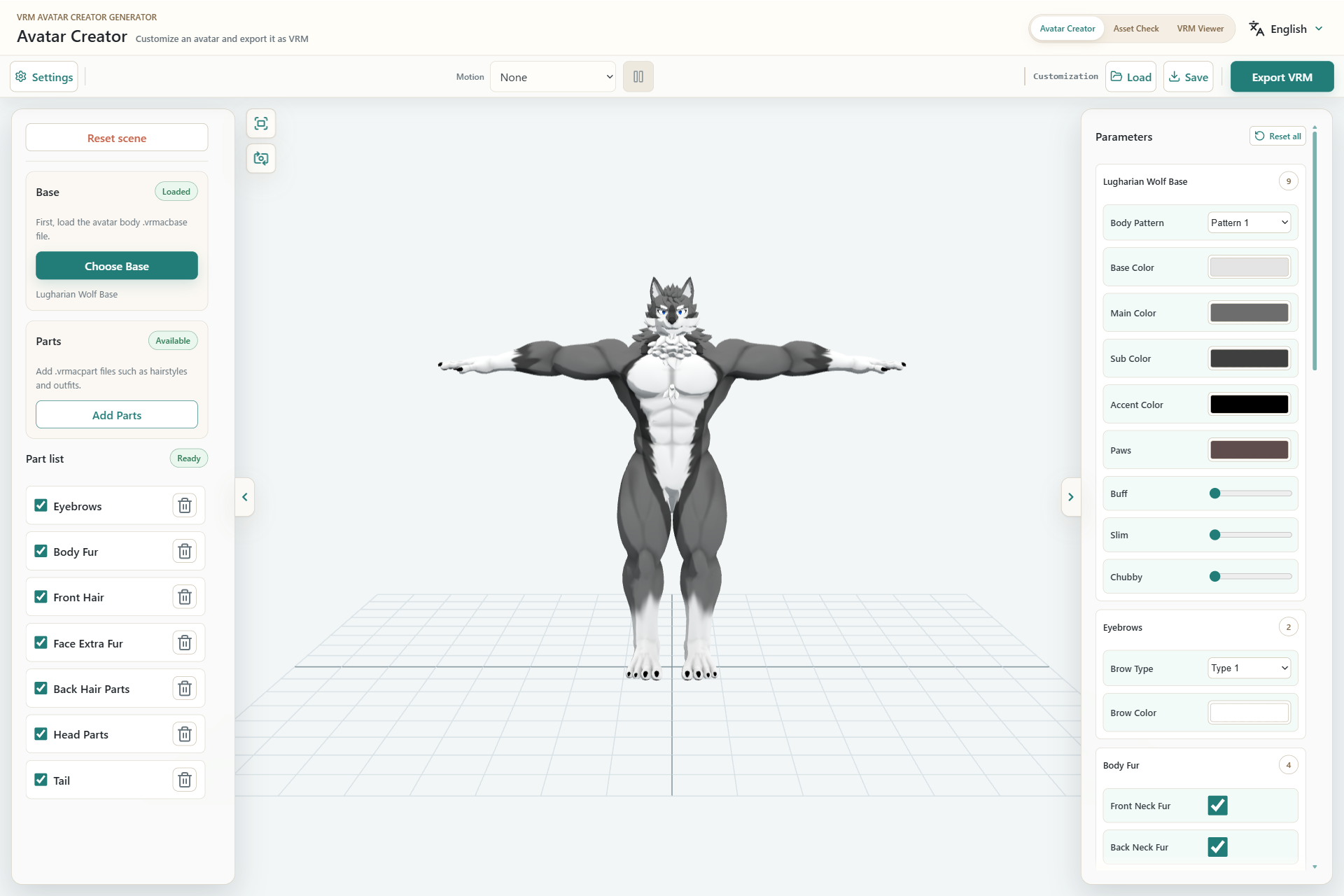
- Select and play or stop a VRMA motion.
- Load a previously saved customization JSON.
- Save the current selections and parameters as JSON.
- Open the VRM export dialog.
The save JSON stores parameter values and enabled Parts. When loading it, make sure the same or compatible Base and Parts are available.